

Table of Contents
- How to Customize 3D Printed Items: Start with Your Idea
- Choose Your Customization Method: Design from Scratch or Modify Existing Models
- How to Edit an STL File for Your Custom Design
- Add Text to a 3D Model: Personalization Techniques
- Prepare Your Model for Printing: Mesh, Orientation, and Scale
- 3D Printing Infill Settings and Material Choices for Durability
- Custom 3D-Printed Figurines: Design Rules for Quality and Fit
- Common Mistakes to Avoid When Customizing 3D Prints
- Frequently Asked Questions
Last Updated: October 11, 2026
How to Customize 3D Printed Items: Start with Your Idea
Customizing 3D printed items transforms generic products into personal expressions of creativity and function. Whether building gaming accessories for a desk setup, creating themed figurines for a collection, or designing practical organizers for a new apartment, the process begins with a clear vision of what you want to create.
At CamGait3D Creations, we understand that customization means different things to different makers. Some want to modify existing designs, others prefer building from scratch. The good news: both paths are accessible to beginners today.
The real difference between a successful custom print and a frustrating one comes down to three decisions made early: choosing the right design method for your skill level, understanding how to prepare your model for printing, and knowing which material and settings match your intended use.
Below, we'll walk through the complete workflow from idea to finished print, covering the tools that work best for beginners, the techniques that separate clean prints from rough ones, and the design rules that ensure your custom items hold up to actual use.
Choose Your Customization Method: Design from Scratch or Modify Existing Models
Two paths lead to a customized 3D printed item: building your own model or editing an existing one. Choosing the right path depends on your comfort with design tools and how much creative control you need.
Building from scratch gives you complete freedom. You design every curve, every detail, every functional feature. This approach works best for items that don't exist yet, a custom gaming desk organizer shaped exactly for your setup, a figurine with your character's unique pose, or a functional part designed to fit a specific gap in your space.
Modifying an existing model takes less time and technical skill. You download a design from a library, import it into an editor, then adjust dimensions, add text, change colors, or reshape sections. This works perfectly when the base design is 90% of what you want, you just need to personalize it.
Building a model from scratch with beginner-friendly tools
Browser-based tools eliminate the need to download software or learn complex interfaces. Tinkercad stands out as the most accessible entry point for designing custom 3D printed items from scratch. Its drag-and-drop interface lets you combine basic shapes, cubes, cylinders, spheres, into functional objects within minutes.
The workflow is straightforward: create a new design, drag shapes onto the canvas, resize and position them, then combine them into a single object. You can add text directly into your model, making personalized items like the Golf Score Clicker with custom color options a practical starting point to understand how text integrates into 3D space.
For slightly more complex projects, Fusion 360 offers a free tier with parametric modeling, a technique that lets you define relationships between parts so changes update automatically. This matters when designing functional items like phone stands or organizers where precise dimensions determine whether the final print actually works.

Importing and editing STL files
An STL file is the standard format for 3D printing. It describes your model as a mesh of triangles that your printer can understand. When you want to customize 3D printed items by editing existing designs, you're typically working with STL files.
Meshmixer specializes in editing STL files. Import a model, then adjust it: scale parts up or down, smooth surfaces, add thickness to thin walls, or combine multiple models into one. The interface feels less intuitive than Tinkercad, but it's powerful for fine-tuning existing designs without rebuilding from scratch.
Many creators download free models from sites like Thingiverse or MyMiniFactory, import them into Meshmixer, then customize them for their specific needs. This hybrid approach, starting with a solid base design and personalizing it, often produces better results faster than designing from zero.
How to Edit an STL File for Your Custom Design
Editing an STL file starts with choosing the right software. Meshmixer remains the most popular free option for this task. Open your STL file, and you're looking at a 3D model made of triangles, the mesh that your printer will interpret as layers.
The most common edits involve scaling, repositioning, and adding thickness. Scaling changes the overall size: make your custom 3D-printed figurine taller, or shrink an organizer to fit a smaller desk.
Adding thickness is critical. If you've imported a thin-walled design or a hollow model, Meshmixer's "Solidify" function adds uniform wall thickness throughout. This prevents prints from being fragile or failing mid-print.
Boolean operations, adding or subtracting shapes, let you cut holes into models or combine separate parts. This matters when customizing 3D printed items for specific functions. Need a phone stand with a cable slot?
Export your edited file as STL when finished. Most slicing software (the program that converts your 3D model into printer instructions) accepts STL format directly.
Add Text to a 3D Model: Personalization Techniques
Adding text transforms a generic item into a personalized gift or functional piece with identity. Text on 3D models can be embossed (raised) or engraved (recessed). Raised text is easier to print and more visible; recessed text creates a subtle, professional appearance.
Tinkercad includes a text tool that creates 3D letters you can position anywhere on your model. Set the text height (how tall the letters are), adjust the depth, then merge it with your base model.
For more control, Fusion 360 lets you create text, extrude it to specific depths, and position it precisely. This matters for functional items where text placement affects how the object works, like adding a name to a golf ball holder without interfering with the ball's fit.

A common mistake: making text too thin. Letters thinner than 1mm won't print clearly. Aim for at least 1.5-2mm depth for embossed text, and ensure the letters themselves are bold enough to survive the printing process.
Prepare Your Model for Printing: Mesh, Orientation, and Scale
Before sending your model to the printer, three technical steps determine whether your print succeeds or fails: checking the mesh, orienting the model, and verifying scale.
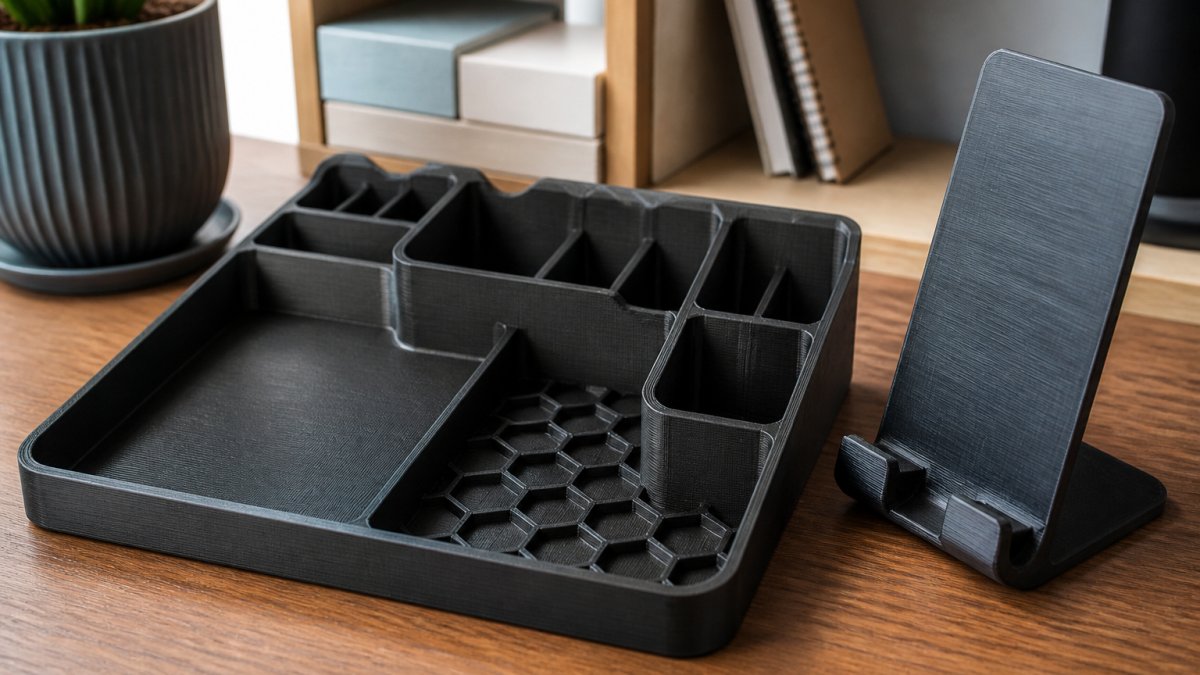
Mesh validation checks that your model is "watertight", a closed surface with no holes or overlapping triangles. Most slicing software flags mesh errors automatically.
Golf Score Clicker - Single Digit – | Golf Gift →
Orientation affects both print time and strength. Printing a tall, thin object standing upright takes longer and risks toppling mid-print. Rotating it to lie on its side reduces time and increases stability.
Scale determines the final size. Verify dimensions before printing: a phone stand that's too small won't hold your phone, an organizer that's too large won't fit your desk.
Most slicing software (Cura, PrusaSlicer, Ultimaker) handles these steps visually. Load your STL, rotate the model on screen to find the best orientation, scale it to the desired size, then generate printer instructions.
3D Printing Infill Settings and Material Choices for Durability
Infill determines how solid your print is inside. 100% infill means completely solid, strong but wasteful and slow. 0% infill means hollow, fast but fragile. For most custom items, 15-20% infill provides the right balance: strong enough for functional parts, fast enough to print reasonably quickly.
Higher infill (30-40%) works for items that take stress: phone stands that hold weight, gaming organizers that store heavy items, or figurines that get handled frequently. Lower infill (10-15%) suits decorative pieces or items that don't experience force.
Material choice affects durability more than most makers realize. PLA (polylactic acid) is the easiest to print and produces smooth surfaces, but it's brittle and degrades in heat. PETG is tougher and handles temperature better.
For custom 3D-printed figurines meant to last years on a shelf, PLA works fine. For functional items like gaming desk organizers or phone stands that experience regular use, PETG offers better durability without requiring expert-level printing skills.

| Infill Level | Best For | Print Time | Strength |
|---|---|---|---|
| 10-15% | Decorative items, light figurines | 30-45 minutes | Low |
| 20-30% | Organizers, phone stands | 45-90 minutes | Medium |
| 40-50% | High-stress functional parts | 90-150 minutes | High |
| 100% | Precision parts, maximum durability | 150+ minutes | Maximum |
Custom 3D-Printed Figurines: Design Rules for Quality and Fit
Figurines represent the most forgiving category for custom 3D printing. They don't need to function, they just need to look good and survive handling.
The primary design rule: avoid overhangs. An overhang is a section of your model that extends outward with nothing beneath it. Printers struggle with overhangs because there's no layer below to support the plastic.
Wall thickness matters even for decorative figurines. Walls thinner than 1mm will crack or snap. Aim for at least 1.5mm everywhere on your model. Use Meshmixer's thickness tools to verify this automatically.
Size affects print quality. Tiny details, facial features, small accessories, print poorly if they're too small. Keep fine details at least 2-3mm in dimension. Larger figurines (5cm or taller) print crisper details than tiny ones.
Consider how the figurine will be oriented during printing. A standing pose prints more reliably than one with extended arms or legs. If your design has thin appendages, they may need support structures or careful orientation to succeed.
Common Mistakes to Avoid When Customizing 3D Prints
The most frequent mistake is skipping the mesh check.
Underestimating wall thickness causes prints to be fragile or fail mid-print. Many designers create models with 0.8mm walls thinking they'll be fine. They won't.
Ignoring orientation wastes time and material. Printing a tall object standing upright might take 6 hours and fail.
Forgetting about support structures causes frustration. Overhangs and bridges need support. Many slicers generate supports automatically, but understanding when they're necessary prevents surprises mid-print.
Choosing the wrong infill for the job creates either waste or disappointment. A decorative figurine doesn't need 40% infill. A functional phone stand does.
Not testing with a small print before committing to a large one means learning expensive lessons. Print a small version of your custom design first.
Customizing 3D printed items transforms your ideas into physical objects, but success depends on understanding the tools, the design rules, and the printing mechanics.
CamGait3D Creations offers custom 3D-printed items designed with durability and detail in mind.
Frequently Asked Questions
What's the easiest way to customize 3D printed items if I've never designed before?
Start with browser-based tools like Tinkercad, which require no software installation. You can modify existing designs, add text, and adjust dimensions using a simple drag-and-drop interface. If you prefer working with existing models, use Meshmixer to import STL files and make basic edits like scaling or adding text.
How do I add text to a 3D model before printing?
In Tinkercad, use the Text tool to create letters, then position them on your model's surface. For imported STL files in Meshmixer, you can use the Extrude feature to add text by creating a new object and merging it. Ensure text is at least 2-3mm tall and 1mm thick for readability after printing. Always preview your model from multiple angles to confirm text placement and orientation.
What infill percentage should I use for functional 3D-printed items like desk organizers?
Use 15-20% infill for decorative items and figurines. For functional pieces like desk organizers or gaming accessories that experience regular use, increase infill to 30-50% for better durability and structural integrity. Higher infill (60%+) adds strength but increases print time and material cost. Test with 20% first; if parts feel weak, increase in 10% increments for your next print.
How do I ensure my custom 3D-printed figurines stay durable and don't fall apart?
Design with proper wall thickness (at least 2mm) and avoid thin, unsupported features that break easily. Use 30-40% infill for figurines to balance weight and durability. Ensure support structures are properly placed under overhanging parts, and choose PLA or PETG filament for better strength. After printing, remove supports carefully to avoid damaging delicate areas, and allow prints to cool completely before handling.